
Zoomable Image
Allow zoom-in images in your documentation

Install to your codebase
Easier customization & control.
npx @fumadocs/cli@latest add image-zoomUsage
Replace img with ImageZoom in your MDX components.
import { ImageZoom } from 'fumadocs-ui/components/image-zoom';
import defaultComponents from 'fumadocs-ui/mdx';
import type { MDXComponents } from 'mdx/types';

export function getMDXComponents(components?: MDXComponents) {
  return {
    ...defaultComponents,
    img: (props) => <ImageZoom {...(props as any)} />,
    ...components,
  } satisfies MDXComponents;
}
Now image zoom will be automatically enabled on all images.
Image Optimization
On Next.js, a default sizes property will be defined for <Image /> component if not specified.
Lightbox
Zoomable images inside <Lightbox /> open in one viewer, browse them with arrow keys, swipes or the side buttons.
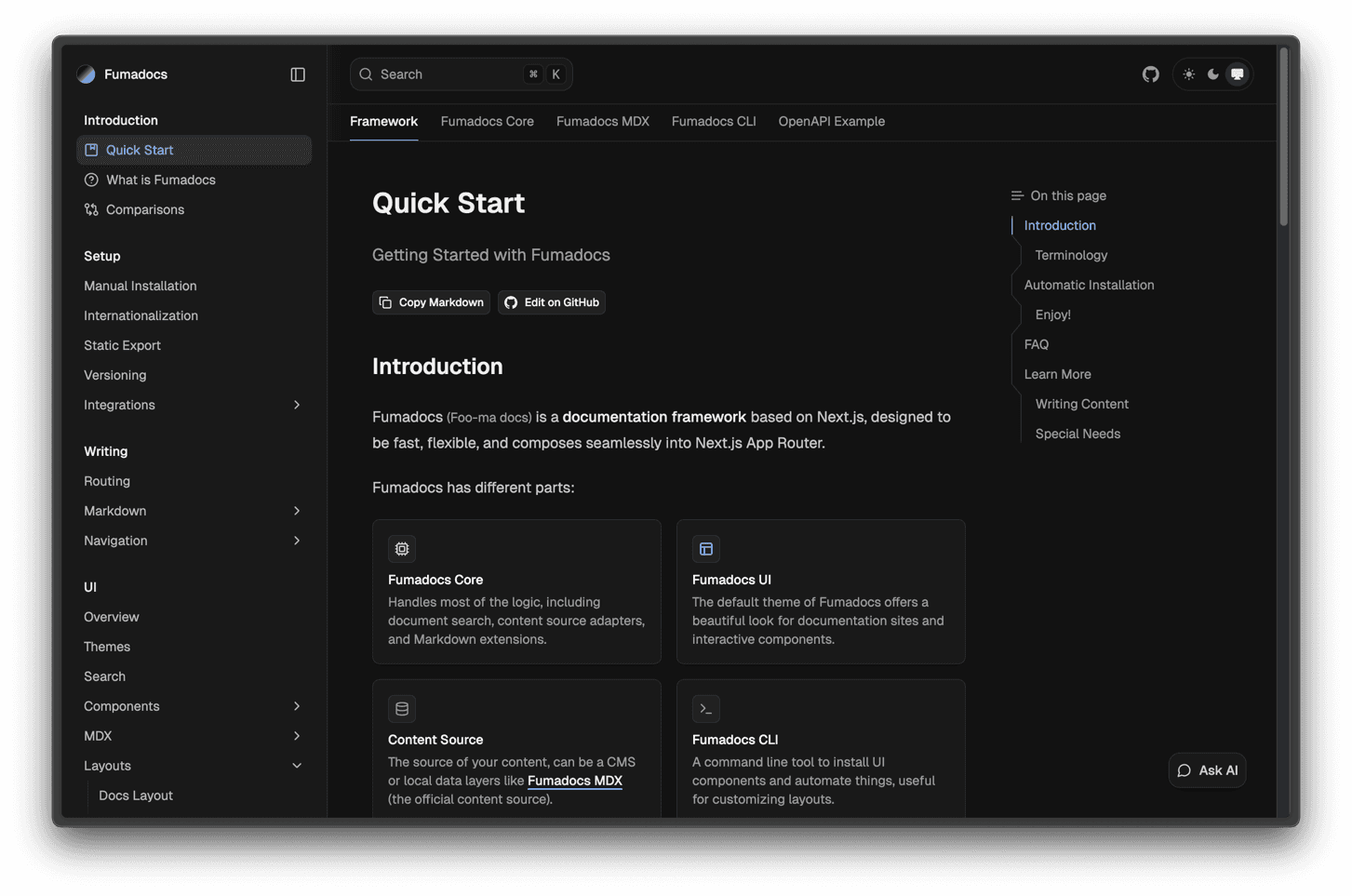
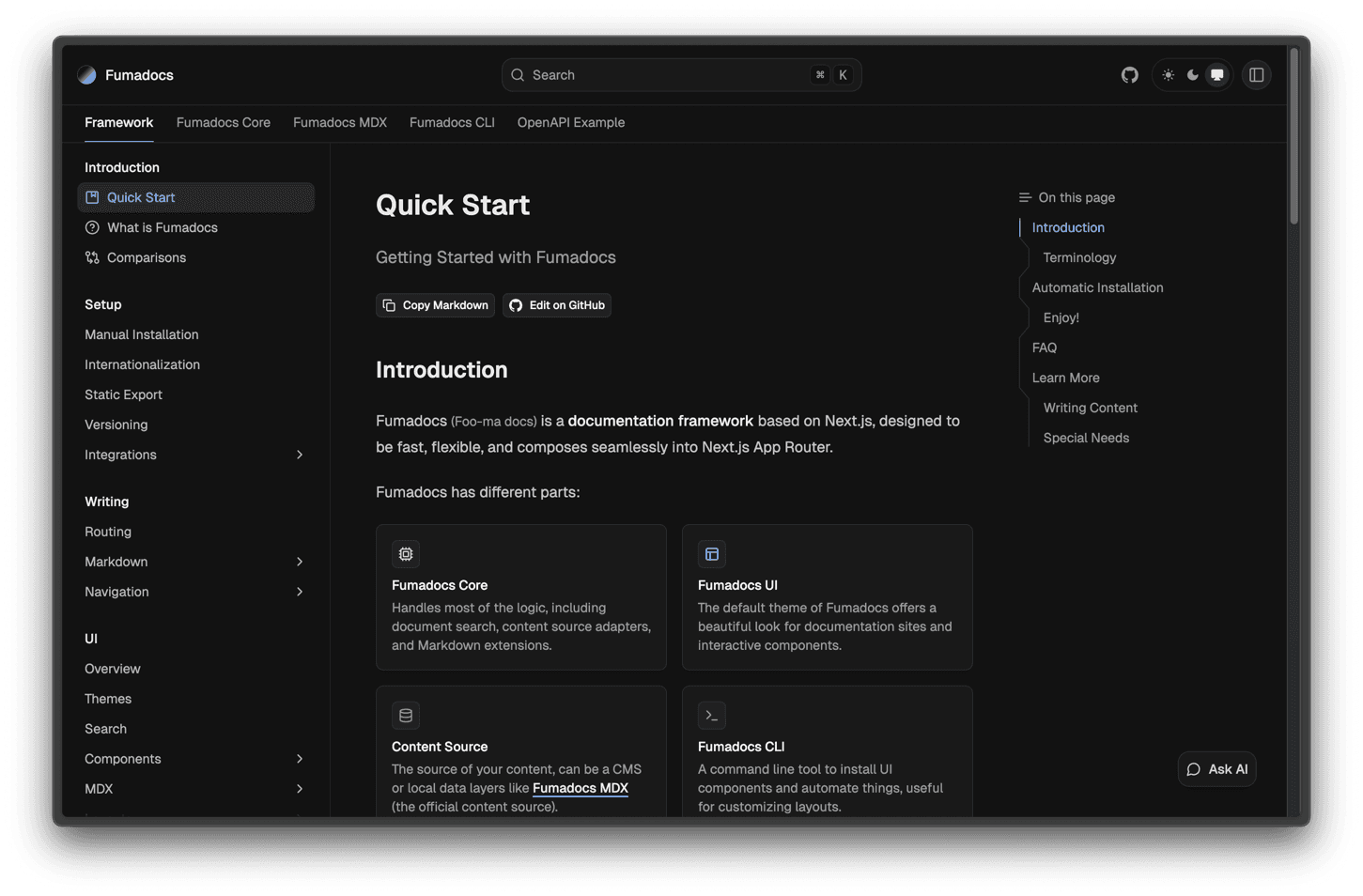
Wrap your page content to browse every image of the page:
import { Lightbox } from 'fumadocs-ui/components/image-zoom';

<DocsBody>
  <Lightbox>
    <MDX components={getMDXComponents()} />
  </Lightbox>
</DocsBody>;
Caption
The image title is shown as caption.
Pass caption for rich content like links.
<ImageZoom
  src="/notebook.png"
  alt="Notebook Layout"
  caption={
    <>
      See <a href="/docs/ui/layouts/notebook">Notebook Layout</a>
    </>
  }
/>
Gallery
To browse a set of images on its own, wrap them in another <Lightbox />, for example as a grid:
<Lightbox>
<div className="not-prose grid grid-cols-2 gap-2">


</div>
</Lightbox>How is this guide?
Last updated on
 General Translation
 Ferry Health
 assistant-ui
 Inkeep